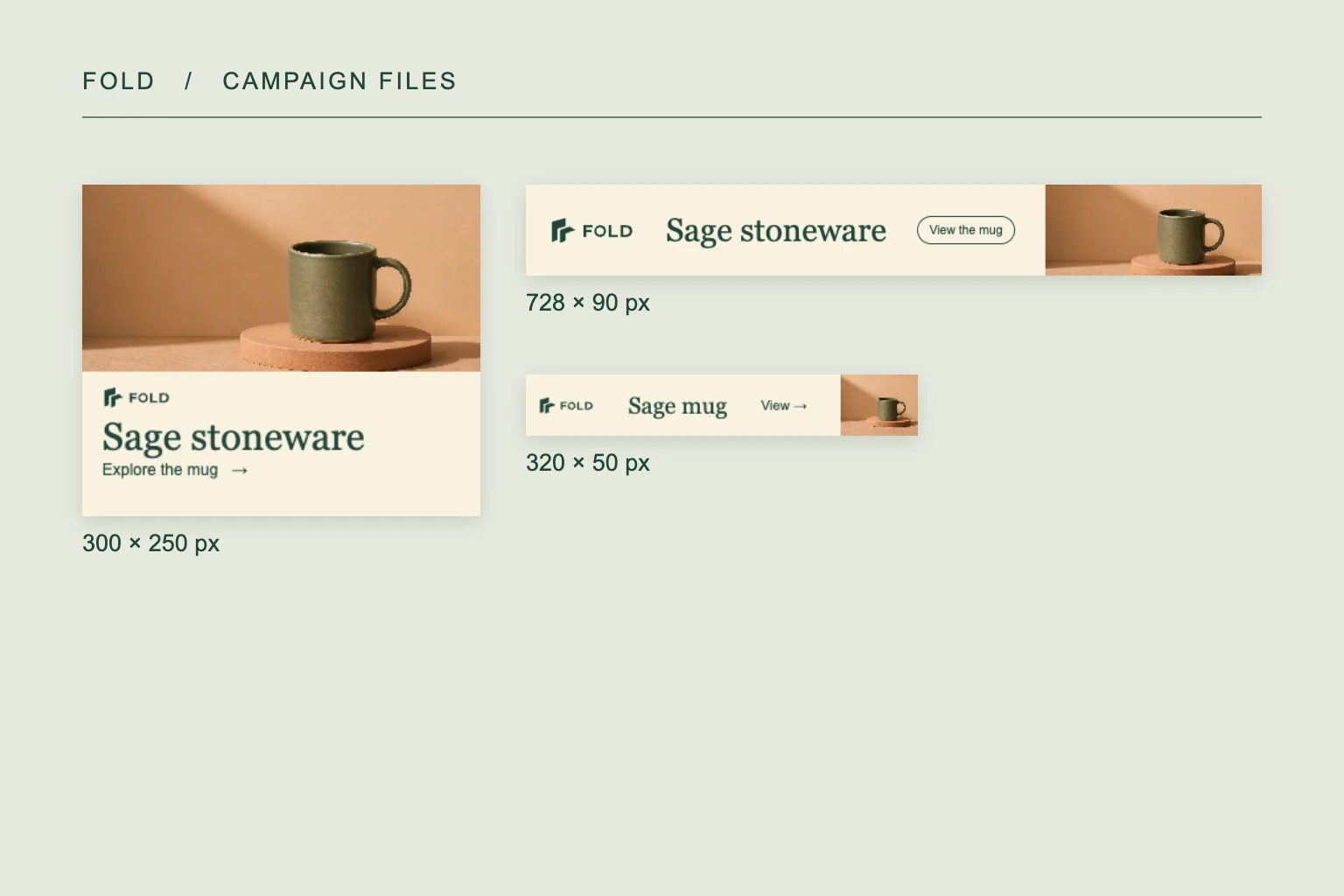
Lay out 300×250, 728×90 and 320×50 finished display banners
Design each file at its real pixel dimensions. The rectangle can hold a product and short headline, a leaderboard reads across, and a small mobile strip needs a single clear message.
Write a line for the narrow strip
At 320 × 50 the rectangle's two-line subheading can become unreadable. Choose whether product or brand recognition leads, then shorten the copy. An action cue conveys intent while the placement controls click behavior.
Inspect each file
Open the 300 × 250, 728 × 90 and 320 × 50 artwork at 100% scale. Check recognition, lettering and actual pixel dimensions. Preserve the main message when a narrow format demands less information. Verify the account's format and file-size requirements before upload. Google uploaded display specifications
Starting materials
Collect a crop-friendly product image, approved copy and identity, target pixel dimensions and file requirements.
Example prompt
Build separate 300×250, 728×90 and 320×50 layouts. Divide the rectangle between photo and headline, arrange photo and short copy across the leaderboard, and remove the subheading in the mobile strip.
What to check
View each finished file at 100% to read the headline and identify the product. Inspect real dimensions and byte size before the account's upload check.