
Keep a holiday hours notice and Google Business Profile in sync
Approve one dated record for one branch, then update its printed door notice and online special hours separately. A visitor searching before the trip and standing at the door should get the same answer.
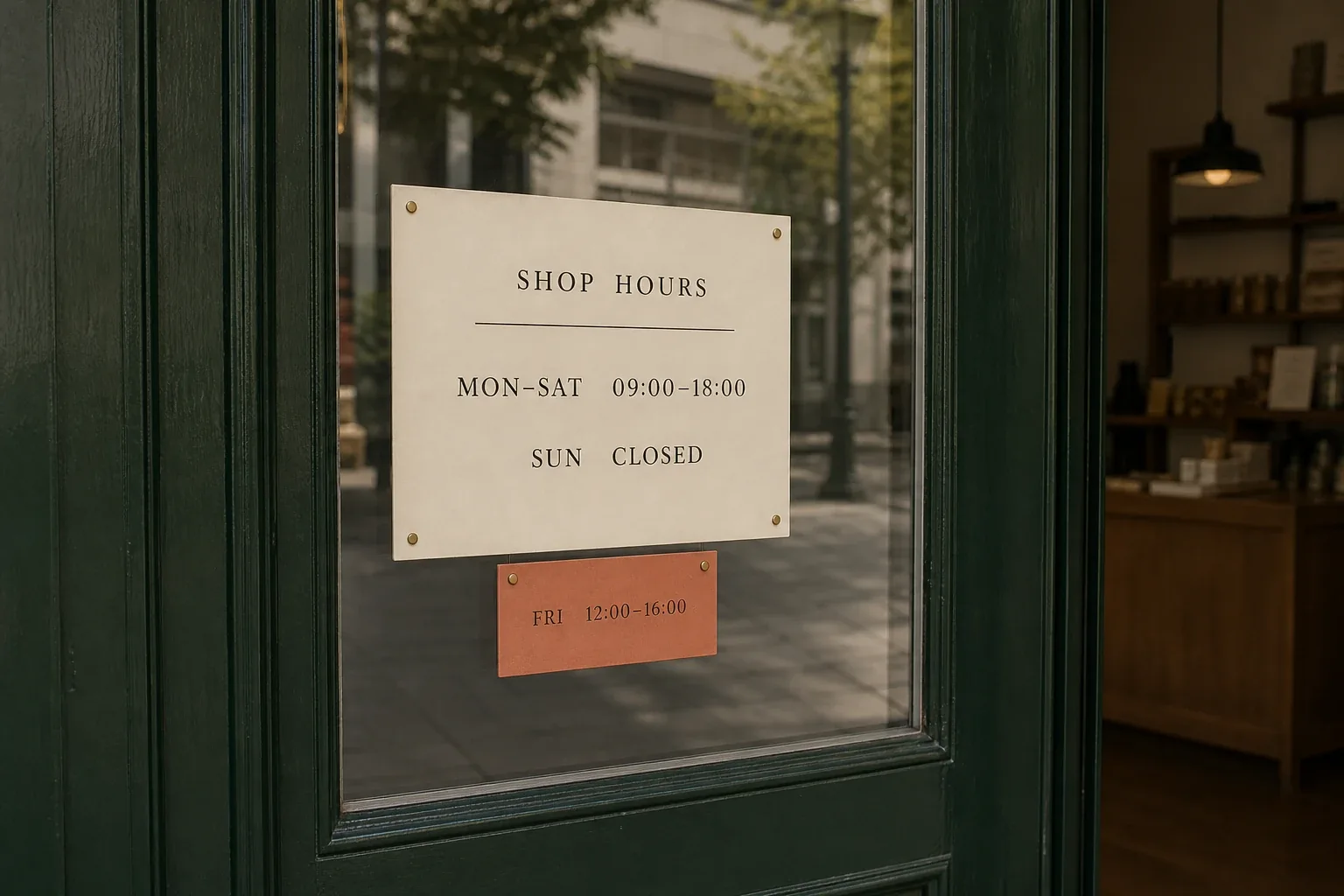
Start with one approved record
Write down the branch, local date, opening and closing times or all-day closure, return to regular hours and owner of the update. If a branch opens only from noon to 4 pm on one Friday, state the actual date so it will not be read as every Friday.
Choose the online hours field
Google Business Profile special hours apply to brief holiday or event changes while retaining the regular weekly schedule. Enter the affected date and closure or operating interval. Check each branch individually. A sign on the door does not update the online profile. Google special-hours help
Walk the customer journey
Look up the business as a visitor and compare it with the card on the door. Ask a colleague for the latest arrival time on the specified date and the schedule the following day. Assign a removal time and revisit both surfaces when the shop changes the plan.